I do like Waze and I find that it is quite accurate in terms of arrival times, usually provides effective routing and I like the live traffic updates. I remember once it took me on what felt like a weird route out of Reading, but it took just ten minutes, whereas if I had taken the route I would have taken without Waze (as I didn’t know Reading very well) it would have taken at least thirty minutes. Waze took me down quieter less busy road, so I was out of Reading very quickly.
Recently though it got very confused when I was travelling on the M4 westbound and then got caught in a traffic jam between junctions 12 and 13. There had been an accident and the lorry involved had spilled its fuel onto the carriageway. The police then closed the motorway, so that it could be resurfaced and directed traffic off at junction 12. Well too late for me as I was already way pass junction 12 and close to junction 13.
Of course with the motorway closed, Waze was updated and the M4 westbound was shown as a red and white dashed line indicating the road was closed. Of course Waze didn’t realise I was heading westbound and just assumed I was on the other carriageway and heading eastbound. So it was inaccurately telling me to head to junction 12 and come off there.
Well I couldn’t as I was stuck westbound.
Eventually after the police started letting traffic through on the outside lane pass the accident, well the fuel spillage, Waze caught up and worked out I was heading westbound after all.
Apple have announced that they are going to stop selling the iPod once the current stocks of iPod touch run out.
Since its introduction over 20 years ago, iPod has captivated users all over the world who love the ability to take their music with them on the go.
Today, the experience of taking one’s music library out into the world has been integrated across Apple’s product line — from iPhone and Apple Watch to iPad and Mac.
I never had the first iPod which was announced in 2001.
The first iPod I got was the 4th version that could show photographs. I used it extensively for podcasts as well as music.
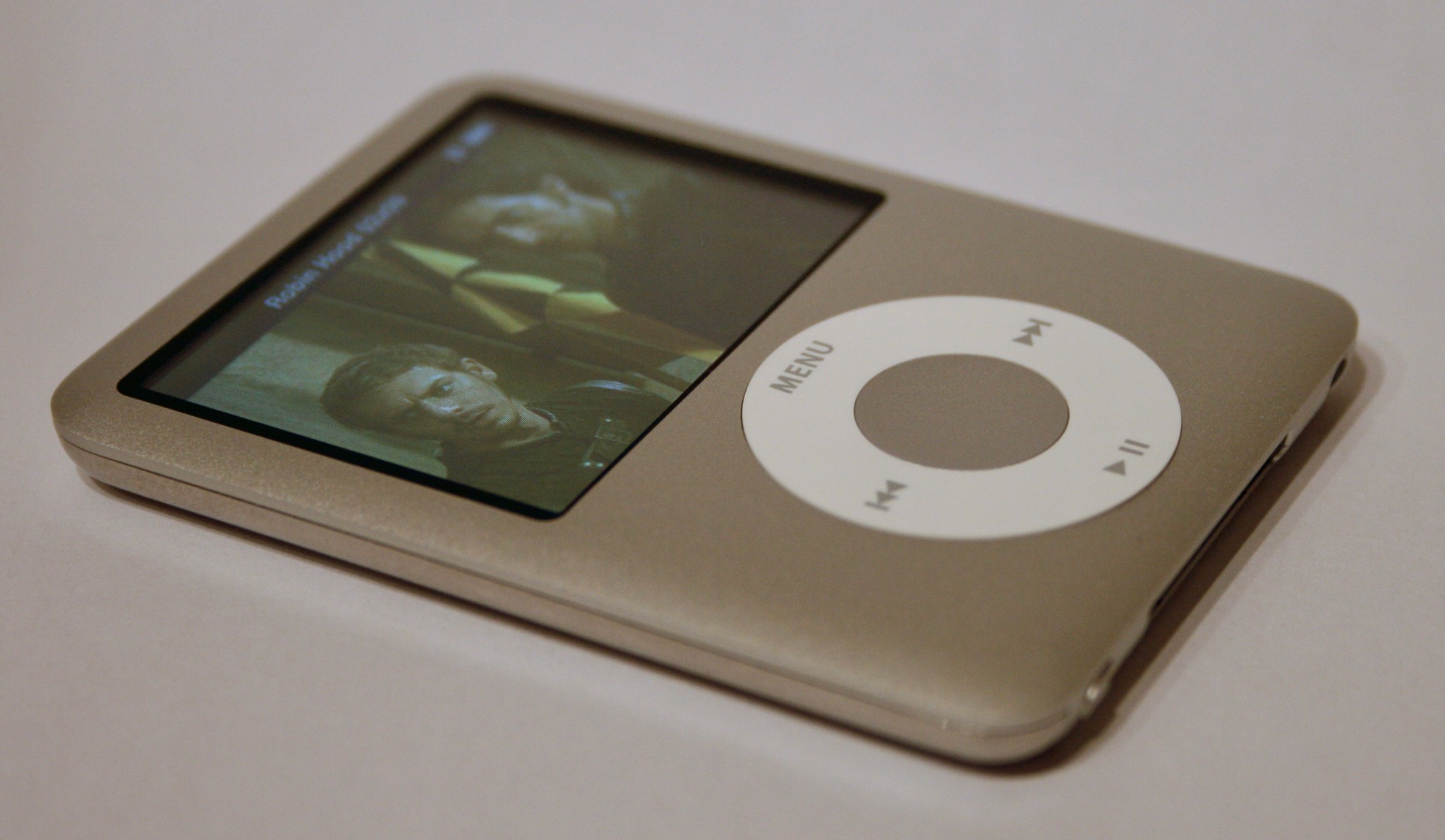
As part of a MoLeNET project at the college I was working at we got a range of iPod devices. We also used a range of 3rd edition iPod nano devices.
I used a 6th iPod Classic, on this I could add images and video, as well as music.
Later we got the iPod touch for the project, which was used for much more than music. I used that for apps, videos and web access.
However now I listen to music on my iPhone and through my Alexa devices. Most of the music I also listen to now is through streaming services, rather than download or rip from a CD.
I always liked the iPod and though technology has moved on, it was something for me that was highly innovative for its time. Though the concept of an mp3 player wasn’t innovative, the way that Apple interpreted the concept was innovative.
This week I was presenting at an online conference and though I usually use my iMac in-built microphone, for this event I was using a Microsoft Surface. I was asked if I had an external microphone I could use as the quality wasn’t very good with the in-built microphone. I do have an external Bluetooth headset I sometimes use for calls, but I have found it can be unreliable when I need it most. So I went to the garage and dug out my old external Blue Snowball USB microphone.
It certainly has a retro feel to it’s look and when I say retro I mean 1950s retro. I’ve had it for a fair few years, well over fifteen I think. It was called a Snowball as it was white ball, well over the years the white plastic and discoloured somewhat, so it is now a faded yellowish white colour. However it worked perfectly and the feedback I had was the quality was excellent.
Despite thinking I had resolved the issue with the updating of My Photo Stream I took a range of photographs and not all were added to My Photo Stream despite using Compatible mode.
I am hoping in the next iOS update that this issue is fixed.
I have managed to resolve an issue having taken photographs with my iPhone that My Photo Stream was not then updating across my devices.
It was in the past week that I noticed that photographs I had taken with my iPhone 13 were not being uploaded to My Photo Stream and shared across my other devices.
I first did the usual trick of going into settings for the Photos app and turning My Photo Stream off and then back on again, however this made no difference.
What was weird was that the photograph I had taken weren’t been uploaded, but the edited versions from Snapseed or Instagram were being added to My Photo Stream.
This photo of the Bristol Harbourside didn’t upload.
This version I edited with Snapseed did.
I checked back through my iPhone camera roll and there was a range of photographs missing from My Photo Stream.
It was working fine on the 16th April, but had stopped updating on the 17th April.
Doing an initial Google search didn’t help, with most references referring to turning My Photo Stream off and back on again, which I knew didn’t work. I powered off the iPhone and back on again, that didn’t resolve the issue either.
My Photo Stream was working fine on other devices. Took a photo with the iPad and it was uploaded to My Photo Stream. On the iPhone if I created an image with Snapseed it was uploaded to My Photo Stream.
That got me thinking that the issue wasn’t with My Photo Stream or the Photos app, but was with the Camera app.
Now doing a Google search I found that others were having a similar issue. It appeared to be related to the 15.4 iOS update.
Going through the settings for the Camera app I checked the formats setting.
Settings > Camera > Formats
To reduce file size, capture photos and videos in the High Efficiency HEIF/HEVC format. Most Compatible will always use JPEG/H.264. Cinematic video, 4K at 60 fps, 1080p at 240 fps and HDR video require High Efficiency.
This was set to High Efficiency, so I switched to Most Compatible.
As a result the next photograph I took was uploaded to My Photo Stream.
I switched back to High Efficiency and the problem came back. It was apparent that the HEIC images were not being uploaded to My Photo Stream, though they were with iOS 15.3 and earlier.
So for the moment I have a temporary fix, so when I take photographs with the iPhone 13 they will upload to My Photo Stream.
It was with some recognition and amusement that I read a recent article in the New Statesman on a study of meetings involving 76 companies and 25,000 employees.
I had shared my own thoughts on meetings with colleagues a week ago, which I had written in January 2021. So it was nice to add to that discussion with this article.
There are some interesting lessons to learn from the study.
The most common meeting structure is one in which junior employees do the work of providing information to a manager, then wait and watch while others do the same. Mostly, it’s a performance – one that cements the social hierarchy of the company and the authority of its managers.
I have been in many of these kinds of meetings. However as a manager I did try and avoid these and have more structured reporting and meeting as a result.
I find that often meetings are held because people don’t prioritise reading reports and want to be told stuff. Highly inefficient and also pretty ineffective way of sharing updates and information, more so when it has to be cascaded down (and across) the organisation.
There are tools out there that can automate reporting (such as JIRA) and be used to create triggers that can then result in a meeting or conversation to solve the challenge or issue. Otherwise it can be slow waiting for that fortnightly meeting to share a challenge that you didn’t even know was a challenge until it got brought up in a meeting!
…if a manager uses a two-hour meeting with 18 colleagues to make some decisions, they’re spending person-hours equivalent to one person doing an entire week’s work.
This kind of resourcing impact is often missed by those involved in organising and running meetings.
I am not sure even if meetings are the most effective way of making decisions.
The article says when one multinational was asked about trialling meeting-free days:
managers at one multinational did what managers do: they called a meeting. Then another. Then another, and another, and another, and… “They actually had 17 recorded meetings, at an average of two hours… 34 hours of their lives, they spent to decide whether they were to opt in!
At the end of those 17 meetings, they still hadn’t made a decision!
So does reducing meetings increase e-mail, well the study found that:
…the reduction in meetings didn’t lead to an increase in the other great stressor of white-collar life: email.
Add to that the quality of email communication and collaboration rose as well.
In fact, employees’ satisfaction with how they communicated rose. More hygienic meetings lead to more hygienic communication elsewhere.
As you might expect I also have some thoughts on managing e-mail.
It doesn’t mean we should never have meetings, the study was about reducing the number of meetings, raising the quality of meetings and improving communication overall. With the aim of improving performance and productivity.
I do think as well as reducing meetings you should also look at how you structure and run meetings as well. Thinking about the purpose of the meeting, the urgency, the importance and who needs to be there.
With my iPhone 8 randomly turning off and then always turning it off, I had it replaced with a new iPhone 13.
I decided not to transfer the full iPhone 8 settings over to the new phone and start (nearly) afresh.
Sometimes I will “clone” my old phone when I have a new one, but most times I like to start from scratch and install the apps I need as and when I need them. This means I don’t install stuff I have stopped using.
What I did do, was copy over my “settings” so I could automatically connect to my known WiFi, use saved passwords and so on.
I configured the phone for multi-factor authentication for work and this was nice and simple.
Overall it was an easy experience moving over to the new phone.
I don’t think anyone thinks they consciously and actively block collaboration, but we often hear cries for more collaboration, so much so that we wonder why we don’t collaborate more than we do. In this post I will explore the reasons for collaboration and some of the blockers that stifle collaboration.
So what do we mean by collaboration.
Collaboration is defined in the dictionary as: traitorous cooperation with an enemy.
That may not mean what we think when we say collaboration. Of course there is another definition which is: the action of working with someone to produce something.
The key part of that definition is to produce something.
So, meetings are not collaboration. They may be part of the process of working together to eventually produce something, but the meeting in itself is not collaboration. Collaboration happens when teams produce something.
Why should we collaborate?
One of the key reasons behind this is about having a wider set of skills and capabilities to drawn upon to produce that something.
Another reason is that it can avoid duplication of effort, collaborating avoids the need for teams to do everything to produce something, but also duplicating effort that may have already taken place, or is being undertaken simultaneously.
Finally with more resource devoted, stuff can be done at pace.
So what are the actual blockers to collaboration? Usually it isn’t one thing, it’s a combination of things.
The working environment can often hinder collaboration, if you are a geographically dispersed team you may not meet people on a regular informal basis. Unless you build in those informal connections, it can mean that the formality of meeting (online) can get in the way of collaboration. Teams that don’t know each other find collaboration challenging.
Another blocker can be a lack of trust, so failing to accept the work of others and duplicating their effort in your own way. Collaboration requires both trust and acceptance of the work of others. This is also about delivering what you promise.
When teams have different or competing objectives, then this can result in teams moving at different speeds or in different directions. When objectives come from strategic priorities then this is less likely to happen, where teams set their own objectives and align them to the strategy then you can have conflicting or clashing objectives.
Where goals and objectives are not clear, this can cause confusion, different rates of pace and failure to achieve. Collaboration requires clarity of goals and objectives across all teams. This is then echoed across the tasks and activities, who does what, what do they need to do, when they need to have it done by and how long will it take.
Even with clarity of goals and objectives, it is vital that there is a process that checks progress against the plan. You can use concepts such as agile for this, but whichever concept you utilise, the key is regular checks of where you are, what blockers are stopping progress and what are the next steps.
If the team doesn’t know what is happening, a lack of transparency, this can block collaboration. Using tools that allow everyone to see progress can result in better collaboration.
Without effective communication collaboration can slow and come to a halt. This comes back my earlier point about meetings. Meetings are not collaboration, but can be important in facilitating collaboration, only though if they are well organised and run effectively.
Collaboration does require teams to plan and think about their ways of working. Compromises have to be made to ensure effective collaboration. You have to trust, and trust is a two way street.



 on the left side of your keyboard
 on the left side of your keyboard
 on the left side of your keyboard