Has 15.5 fixed My Photo Stream?

In a previous post I mentioned I was having issues with My Photo Stream having upgraded my iPhone 13 to iOS 15.4.

I noticed that photographs I had taken with my iPhone 13 were not being uploaded to My Photo Stream and shared across my other devices.

This was an annoying bug, as I did use this feature a lot, using photographs I had taken on my iPhone and then using them with my Mac.

I did try a temporary fix my changing the camera mode, it was set to High Efficiency, so I switched it to Most Compatible.

However this wasn’t a real fix, as though some photographs were uploaded to My Photo Stream, not all were.

I have now upgraded to iOS 15.5 and though there wasn’t a mention of fixing this bug, I did notice that yesterday all my photographs were uploaded to My Photo Stream, but I was still using Most Compatible mode. This morning I switched to High Efficiency and took a few photographs and allwere uploaded to My Photo Stream.

screengrab of iOS screen showing My Photo Stream working

So here’s hoping that bug is now fixed.

Wazing the wrong way

I do like Waze and I find that it is quite accurate in terms of arrival times, usually provides effective routing and I like the live traffic updates. I remember once it took me on what felt like a weird route out of Reading, but it took just ten minutes, whereas if I had taken the route I would have taken without Waze (as I didn’t know Reading very well) it would have taken at least thirty minutes. Waze took me down quieter less busy road, so I was out of Reading very quickly.

Recently though it got very confused when I was travelling on the M4 westbound and then got caught in a traffic jam between junctions 12 and 13. There had been an accident and the lorry involved had spilled its fuel onto the carriageway. The police then closed the motorway, so that it could be resurfaced and directed traffic off at junction 12. Well too late for me as I was already way pass junction 12 and close to junction 13.

Of course with the motorway closed, Waze was updated and the M4 westbound was shown as a red and white dashed line indicating the road was closed. Of course Waze didn’t realise I was heading westbound and just assumed I was on the other carriageway and heading eastbound. So it was inaccurately telling me to head to junction 12 and come off there.

Well I couldn’t as I was stuck westbound. 

Eventually after the police started letting traffic through on the outside lane pass the accident, well the fuel spillage, Waze caught up and worked out I was heading westbound after all.

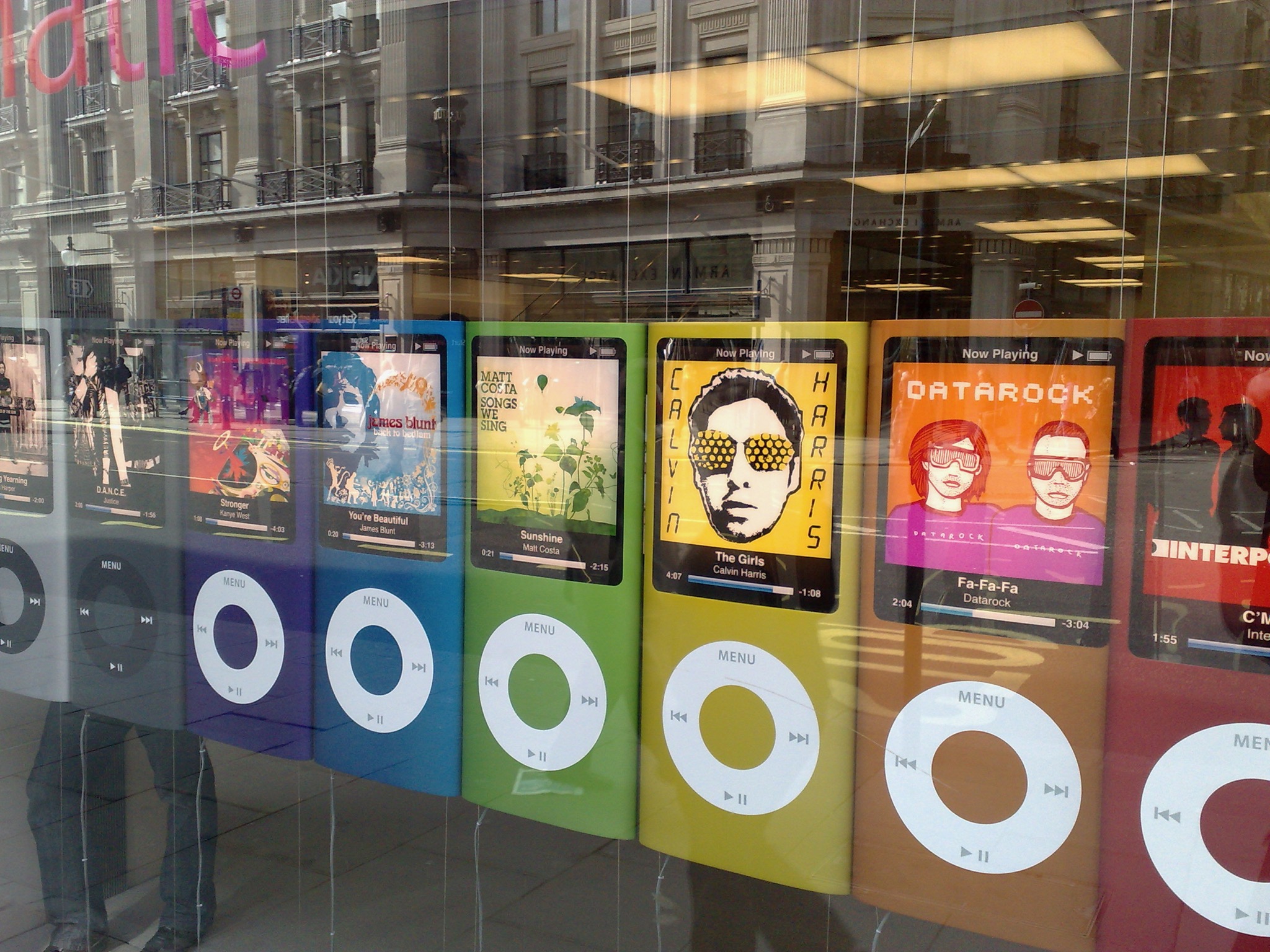
iPod no more

Apple have announced that they are going to stop selling the iPod once the current stocks of iPod touch run out.

Since its introduction over 20 years ago, iPod has captivated users all over the world who love the ability to take their music with them on the go. 

Today, the experience of taking one’s music library out into the world has been integrated across Apple’s product line — from iPhone and Apple Watch to iPad and Mac.

I never had the first iPod which was announced in 2001.

The first iPod I got was the 4th version that could show photographs. I used it extensively for podcasts as well as music.

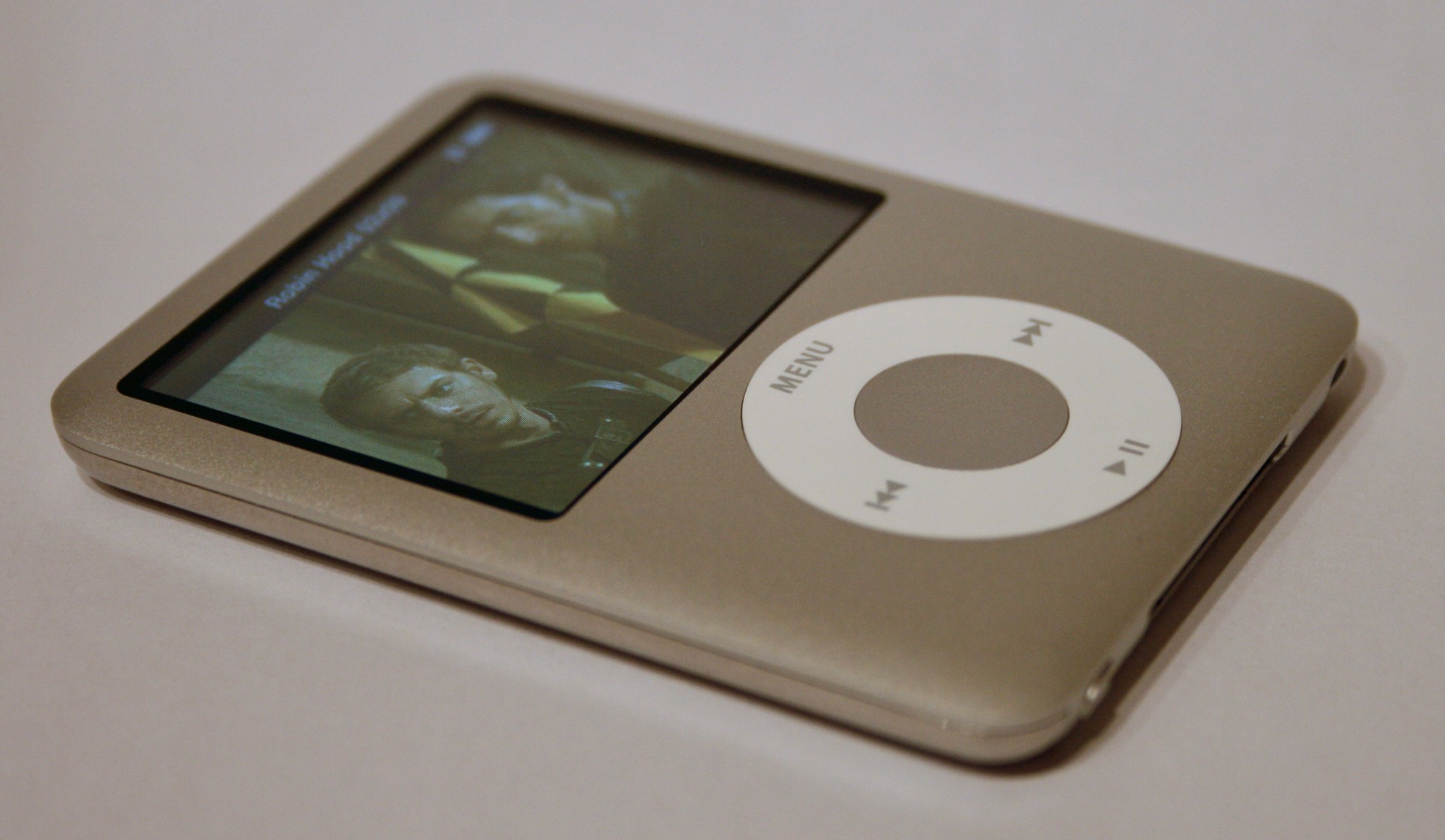
As part of a MoLeNET project at the college I was working at we got a range of iPod devices. We also used a range of 3rd edition iPod nano devices.

I used a 6th iPod Classic, on this I could add images and video, as well as music.

Later we got the iPod touch for the project, which was used for much more than music. I used that for apps, videos and web access.

However now I listen to music on my iPhone and through my Alexa devices. Most of the music I also listen to now is through streaming services, rather than download or rip from a CD.

I always liked the iPod and though technology has moved on, it was something for me that was highly innovative for its time. Though the concept of an mp3 player wasn’t innovative, the way that Apple interpreted the concept was innovative.

So did you have an iPod and if so which one?

Blue is the colour

This week I was presenting at an online conference and though I usually use my iMac in-built microphone, for this event I was using a Microsoft Surface. I was asked if I had an external microphone I could use as the quality wasn’t very good with the in-built microphone. I do have an external Bluetooth headset I sometimes use for calls, but I have found it can be unreliable when I need it most. So I went to the garage and dug out my old external Blue Snowball USB microphone.

It certainly has a retro feel to it’s look and when I say retro I mean 1950s retro. I’ve had it for a fair few years, well over fifteen I think. It was called a Snowball as it was white ball, well over the years the white plastic and discoloured somewhat, so it is now a faded yellowish white colour. However it worked perfectly and the feedback I had was the quality was excellent.

Think I might start using it more.

If you want one, you can get one at Amazon.

Still some problems

Despite thinking I had resolved the issue with the updating of My Photo Stream I took a range of photographs and not all were added to My Photo Stream despite using Compatible mode.

I am hoping in the next iOS update that this issue is fixed. iPhone

Trackpad not clicking

I got my MacBook Pro out and was looking at a few websites and I realised that my trackpad was no longer ‘clicking’.

The tap to click was working fine, but the click had stopped working.

It was a bit disconcerting, but the MacBook was still usable.

I thought was my trackpad broken.

However…

When I did a restart I couldn’t click on my name to log into the MacBook Pro as tap to click didn’t work on the user login screen.

I had to get a mouse out to log in.

I did wonder if I would need to get it fixed, but first I did a Google search.

One possible resolution was to reset the SMC.

The system management controller (SMC) controls how a Mac manages power.

      1. Shut down your Mac.
      2. On your built-in keyboard, press and hold all of these keys:

Shift  on the left side of your keyboard
Control  on the left side of your keyboard
Option (Alt)  on the left side of your keyboard

      1. While holding all three keys, press and hold the power button as well.
      2. Keep holding all four keys for 10 seconds.
      3. Release all keys, then press the power button to turn on your Mac.

I did this and I was pleasantly surprised to find that the trackpad was working again.